
Other pages in this section
Installing an authenticator app
Do this before your first sign-in.
Every time you sign in, MOD One asks for your password and a six-digit code from an app on your phone. The code changes every thirty seconds.
Install the app before your first sign-in. Setting it up is one of the sign-in steps.
Which app
Any of these work. Use whichever you already know.
| App | Notes |
|---|---|
| Microsoft Authenticator | Free |
| Google Authenticator | Free |
| Any other authenticator app | If it scans a QR code and shows six digits that change, it will work |
Set it up
-
Install the app from your phone’s app store. Check the developer name first: there are look-alike apps with similar names and icons.
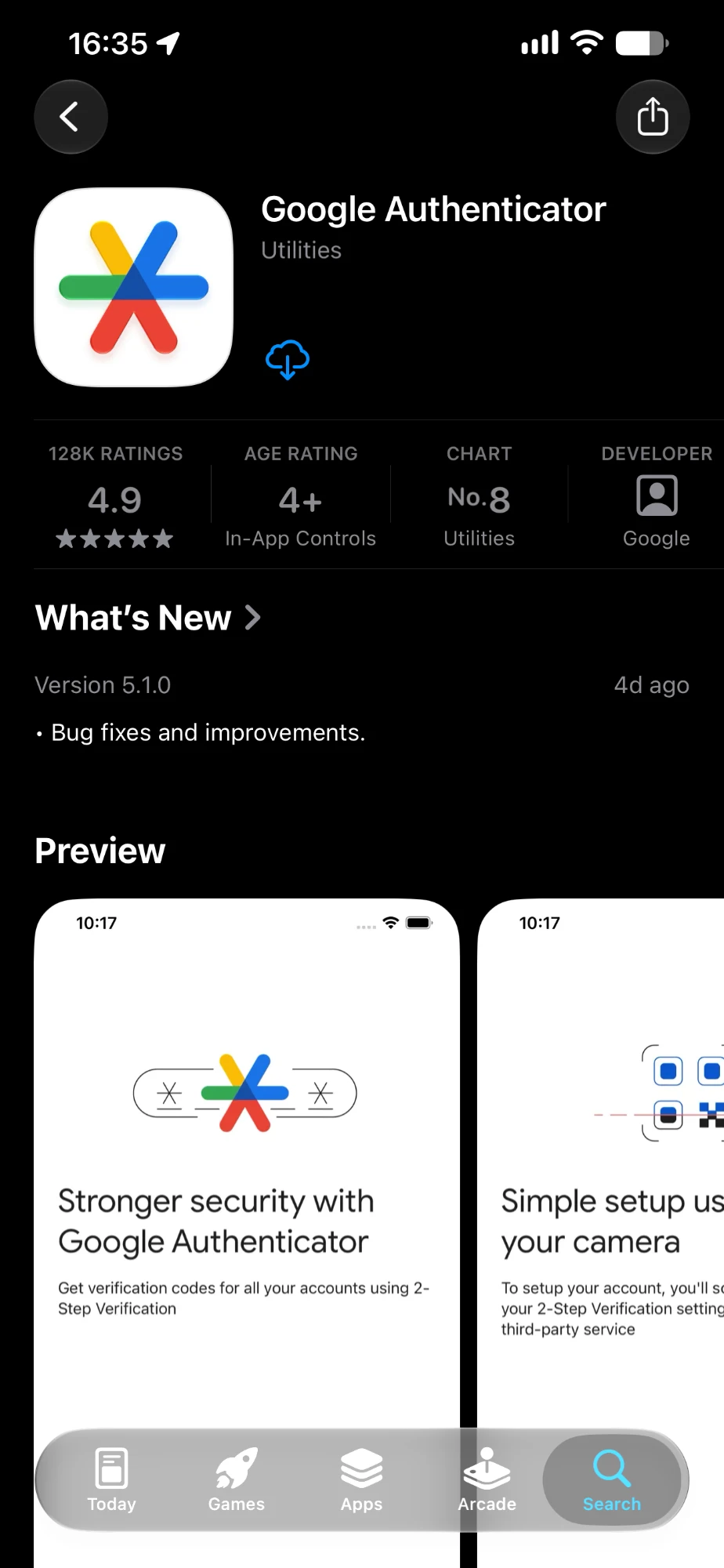
The developer line should say Google. If it says anything else, it is not this app. -
Open it once and finish whatever it asks on first launch.
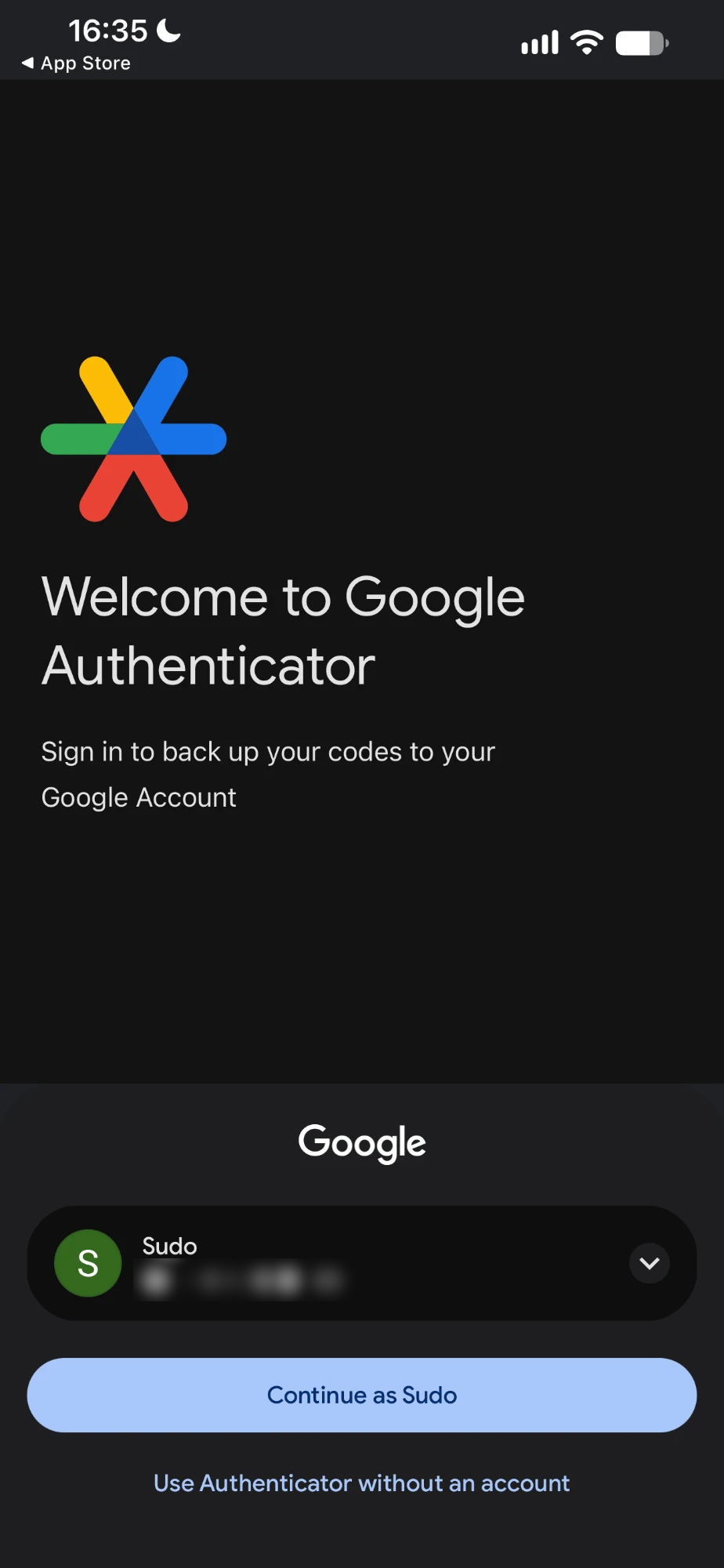
On first launch the app offers to back up your codes to a Google Account, and also offers Use Authenticator without an account. -
Set your phone’s date and time to automatic in your phone settings, not by hand.
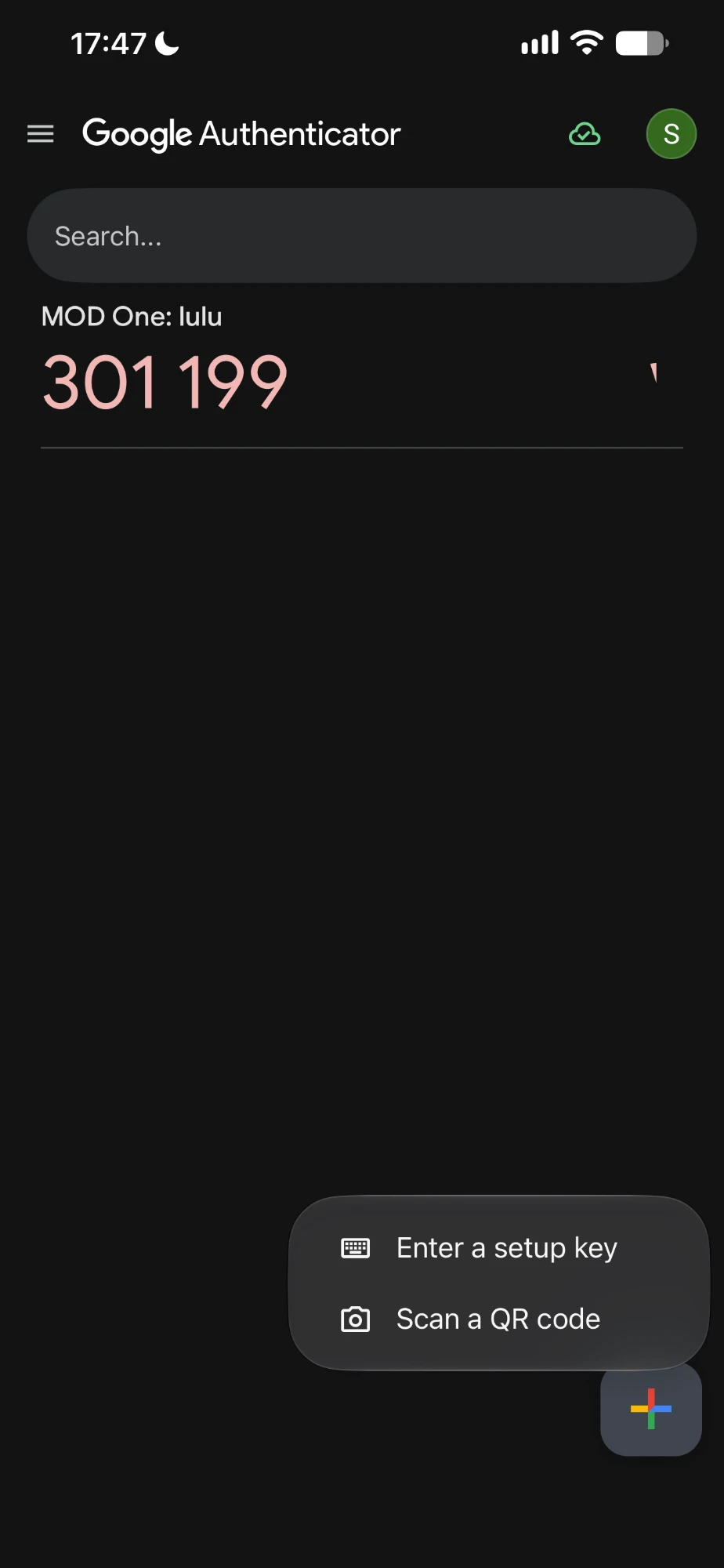
After your first sign-in, your MOD One account appears in the app with a six-digit code that changes every thirty seconds.
If you lose your phone
If you lose your phone, you cannot get back in by yourself. You must ask an administrator. See I lost my authenticator.
To protect yourself: if you have a tablet or a spare phone, scan the QR code with both when MOD One shows it. Either device will then give valid codes.
What happens next
Nothing, until your first sign-in. When you see the QR code, open this app and scan it. See Your first sign-in.
If it does not work
- The app asks me to scan a code and I have nothing to scan.
You opened the app before starting your MOD One sign-in. The QR code comes from MOD One, later.
Close the app. Come back to it when the sign-in screen shows you a QR code.
- I do not have a phone I can install apps on.
Every MOD One account needs the authenticator app. There is no exception.
Tell your administrator before your first sign-in, not during it.
- My workplace will not let me install apps on my phone.
This is a rule set by whoever manages your phone, not by MOD One.
Ask whoever manages your phone. MOD One cannot change this or work around it.
Still stuck? Contact your MOD One administrator. Tell them you were setting up your authenticator app, what your phone showed, and whether you got as far as scanning the QR code.
Watch it2:10
This recording has no captions yet. Captions are required before launch (NFR-09 targets WCAG 2.2 AA). The written steps above carry the same content in the meantime.