
Other pages in this section
Your first sign-in
From the sign-in sheet an administrator gives you to a working MOD Account.
You cannot create a MOD Account yourself. An administrator creates it and gives you a sign-in sheet, on paper or as a PDF file. Sign-in details are not sent by email.
Before you start
You need two things:
-
The sign-in sheet. It has the portal address, your username, a temporary password and your MOD Person ID.
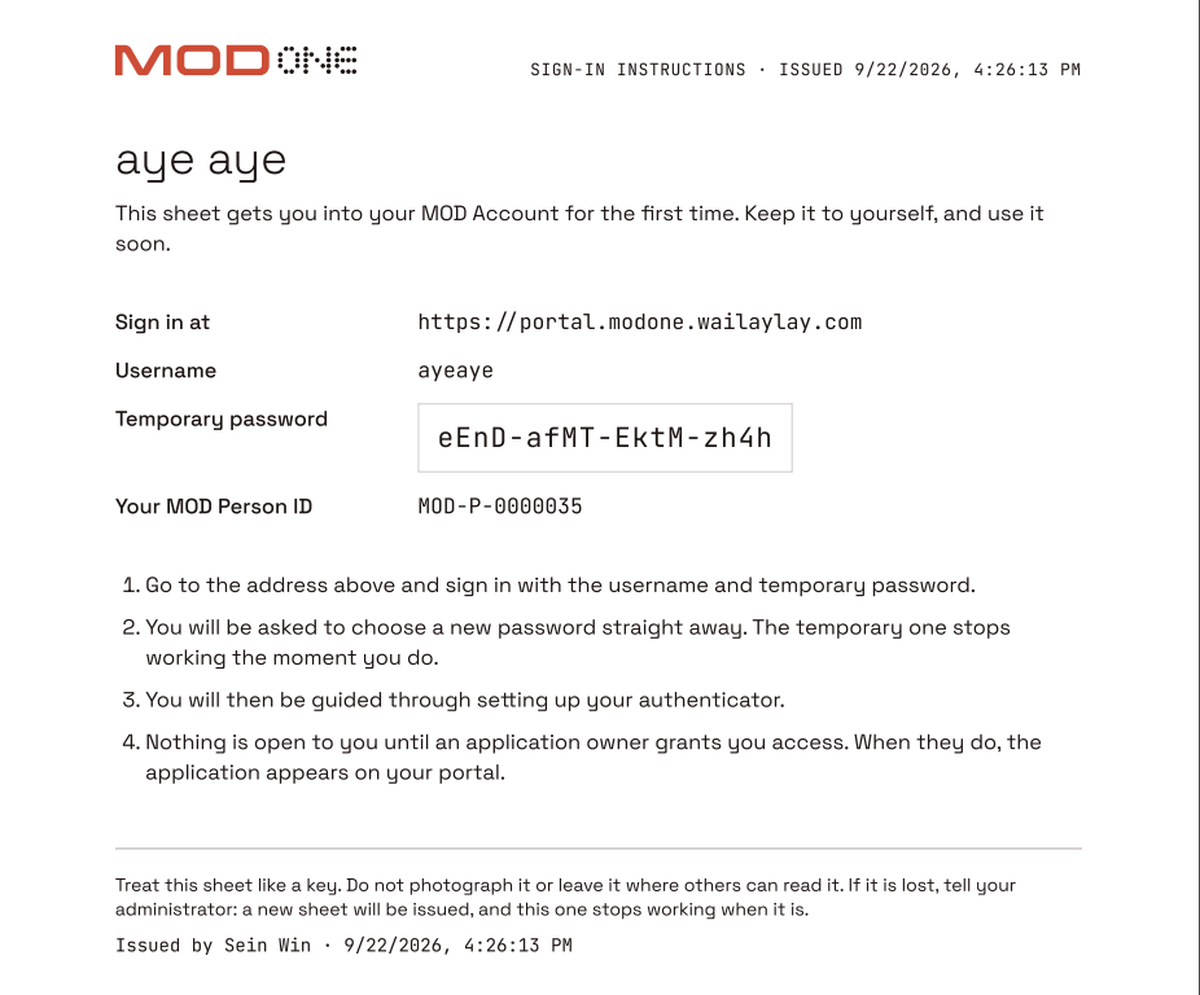
Your temporary password is in the box. The numbered steps on this sheet put the password first. Follow the screens instead: the authenticator comes first. -
An authenticator app on your phone. Install it first: see Installing an authenticator app. You set it up first, before your own password, and you cannot skip it. If you start without your phone, stop: the temporary password keeps working, so you can start again later.
What to do
-
Go to the address on your sheet and select ENTER.
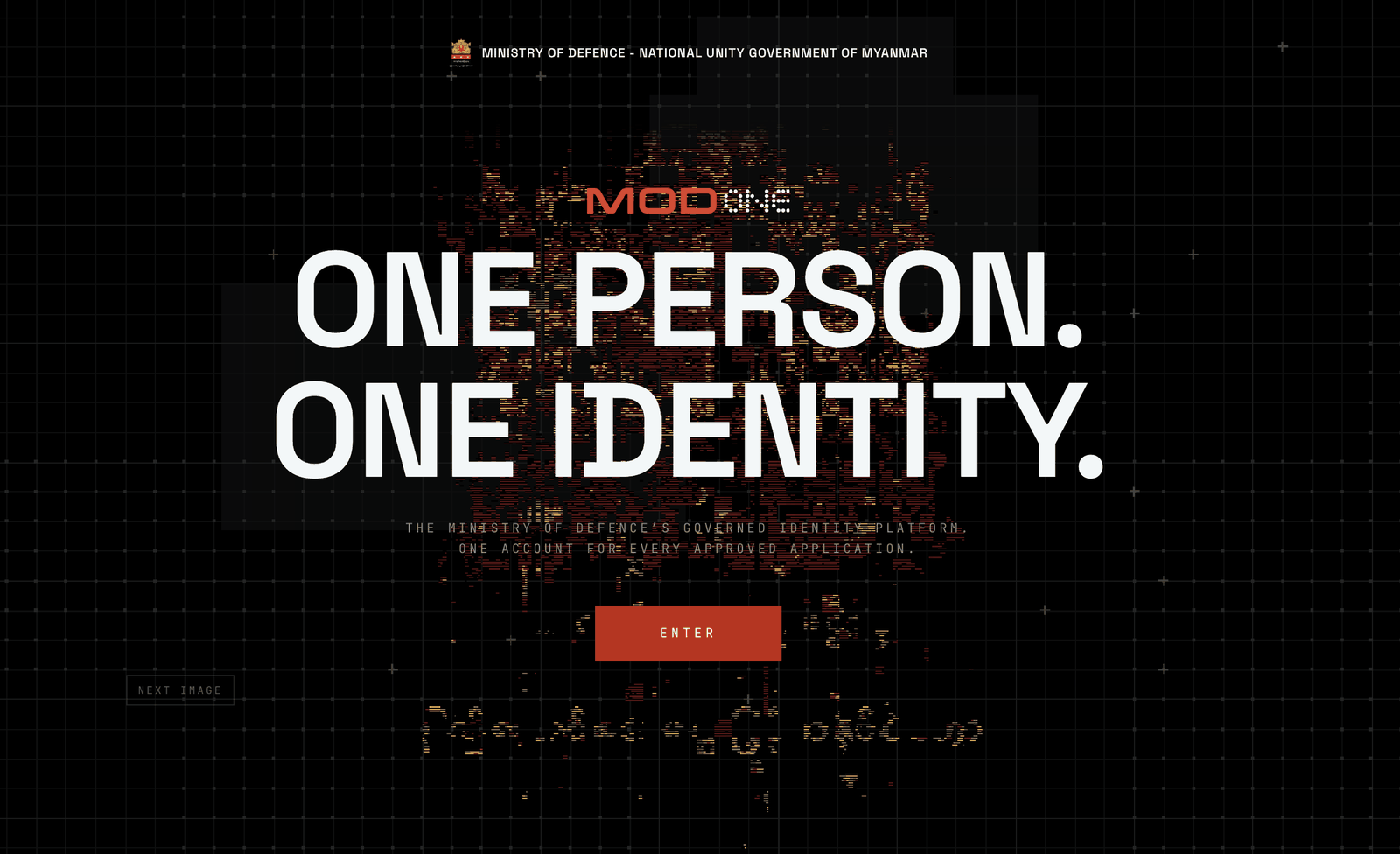
There is no password field here. ENTER is the only thing to select. -
Type your username and the temporary password from the sheet, then select Sign In. You can use your email address instead of your username.
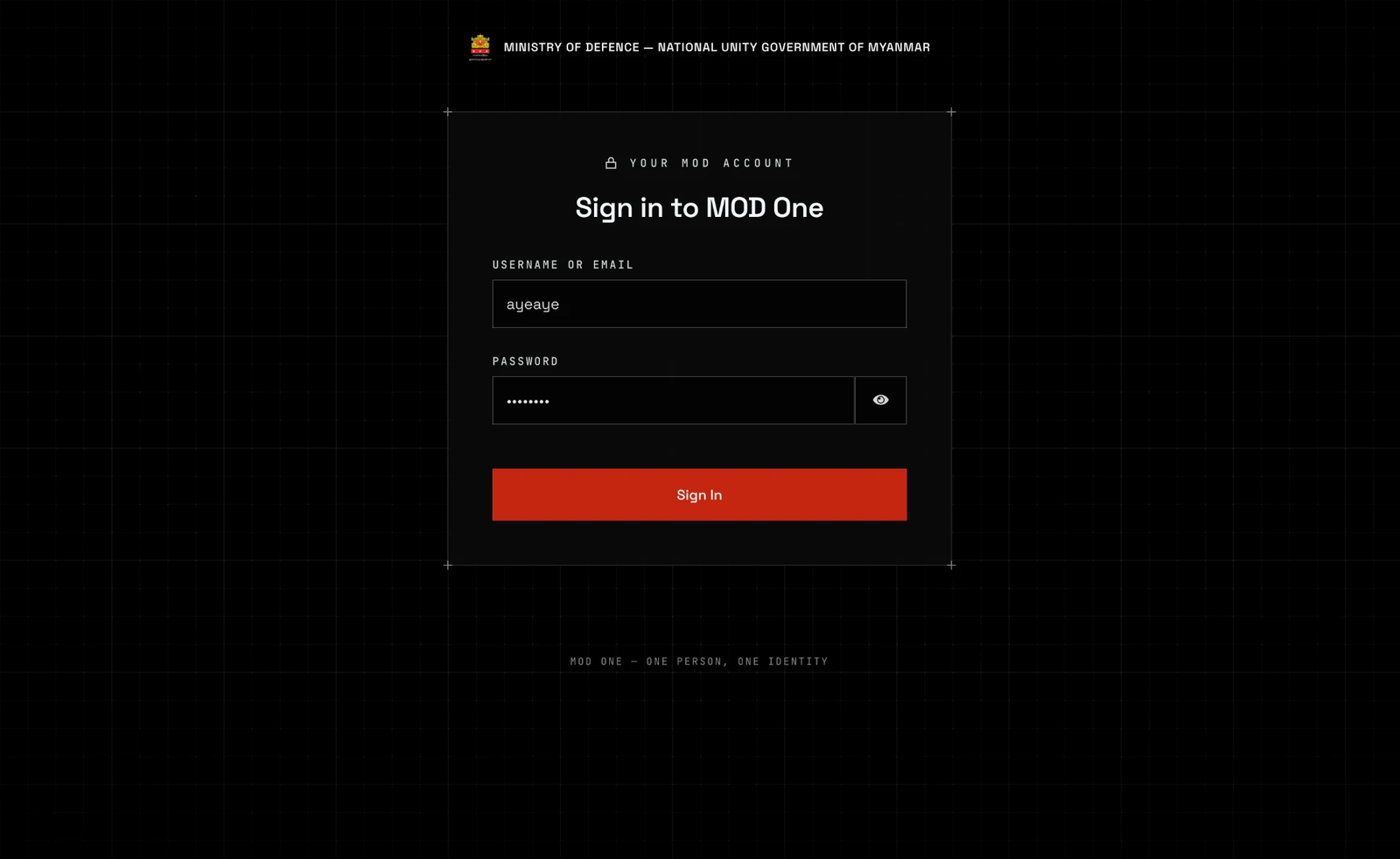
The eye icon shows what you typed. Use it to check the password you copied from the sheet. -
Set up your authenticator app. The page is headed Add your authenticator.
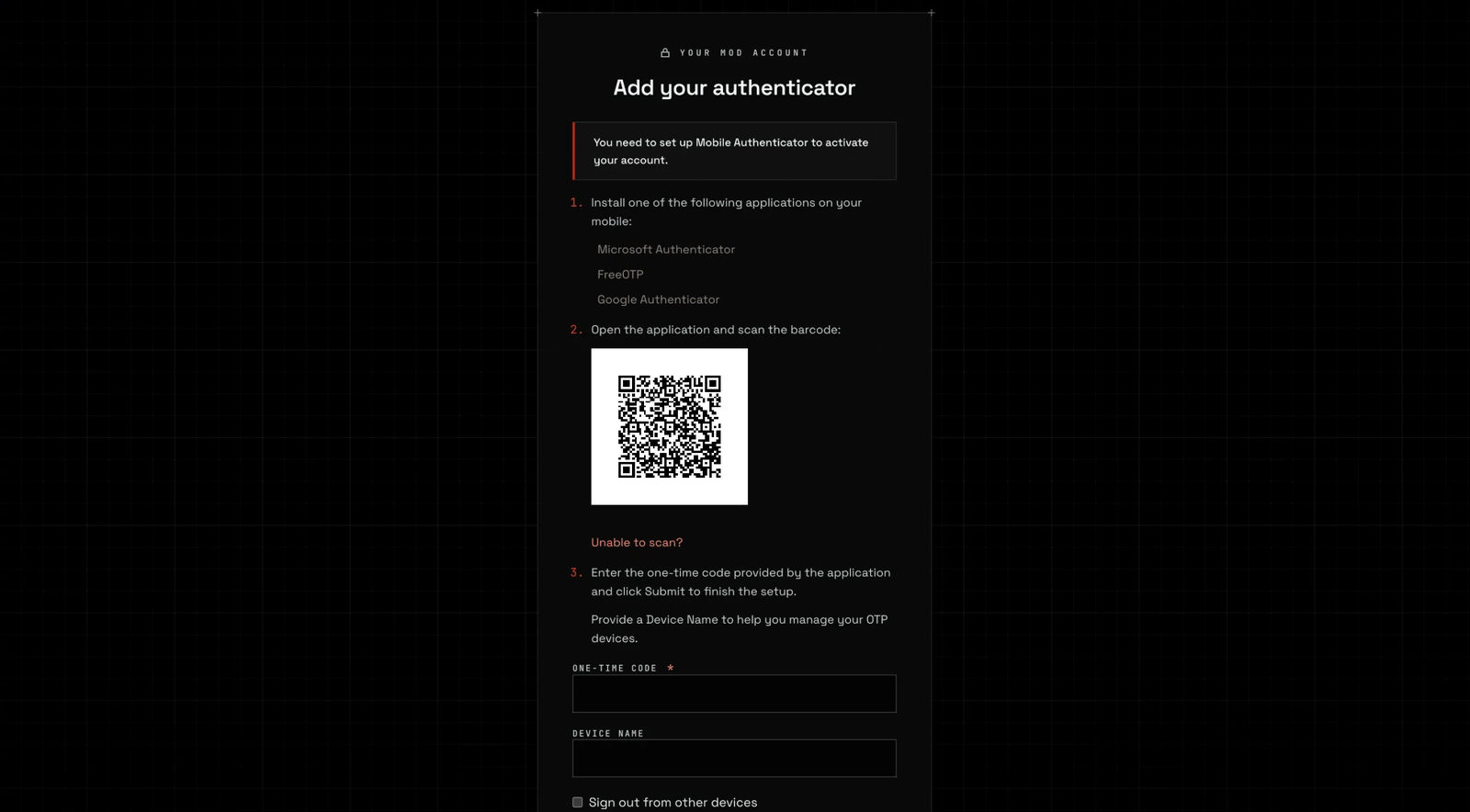
Scan the QR code (1), then type the code from your app (2). Device Name is only a label for you. - In your authenticator app, tap +, then Scan a QR code, and point your phone at the QR code on the screen.
- Type the six-digit code the app shows into One-time code and submit.

Tap the plus button (1), then Scan a QR code (2). If the code is about to change, wait for the next one. From now on you need this app every time you sign in.
-
Choose a new password. The page is headed Set your password. Once you set it, the temporary password stops working and you no longer need the sheet.
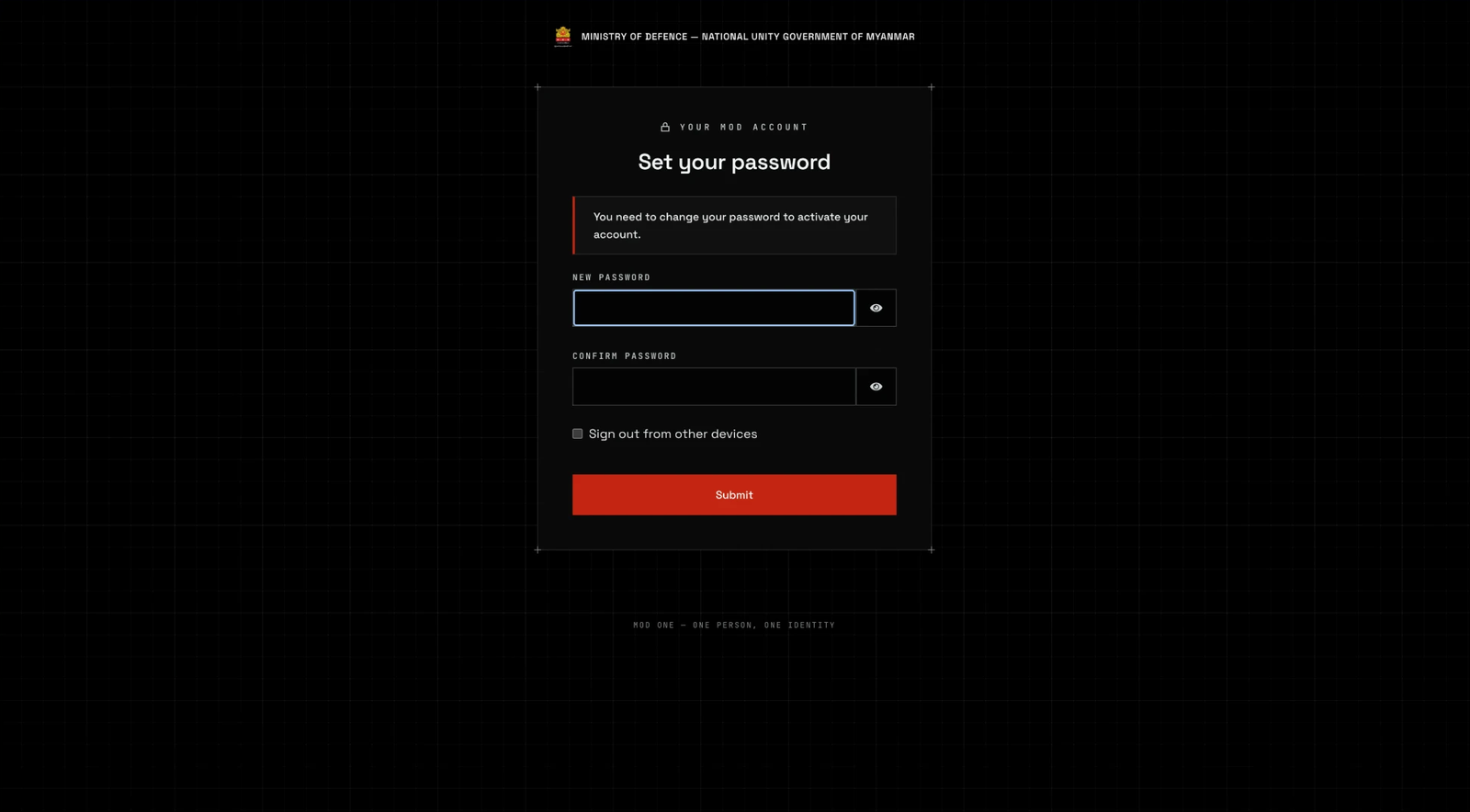
Type the same new password in both fields. The eye buttons show what you typed. -
Accept the Terms of Use. The page is headed Before you continue. Read the Terms, tick the box that begins “I have read and understood the MoD ONE Terms of Use”, then select I Agree.
If you select Decline, you are signed out, and you cannot use your account until you accept.
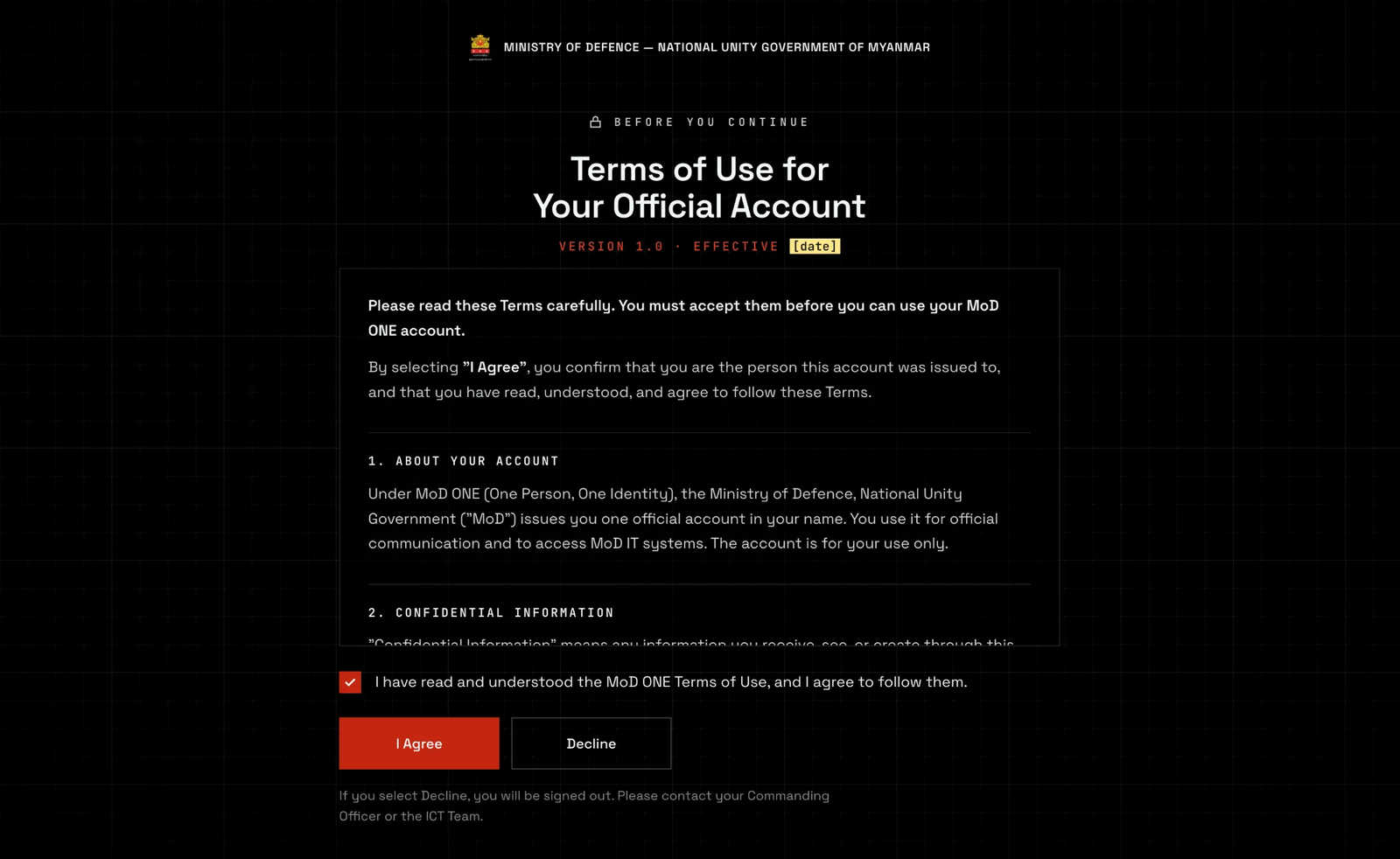
Tick the box first. I Agree will not continue until the box is ticked. -
You land on the portal. You see either your application tiles, or “No applications yet”. Both are normal.
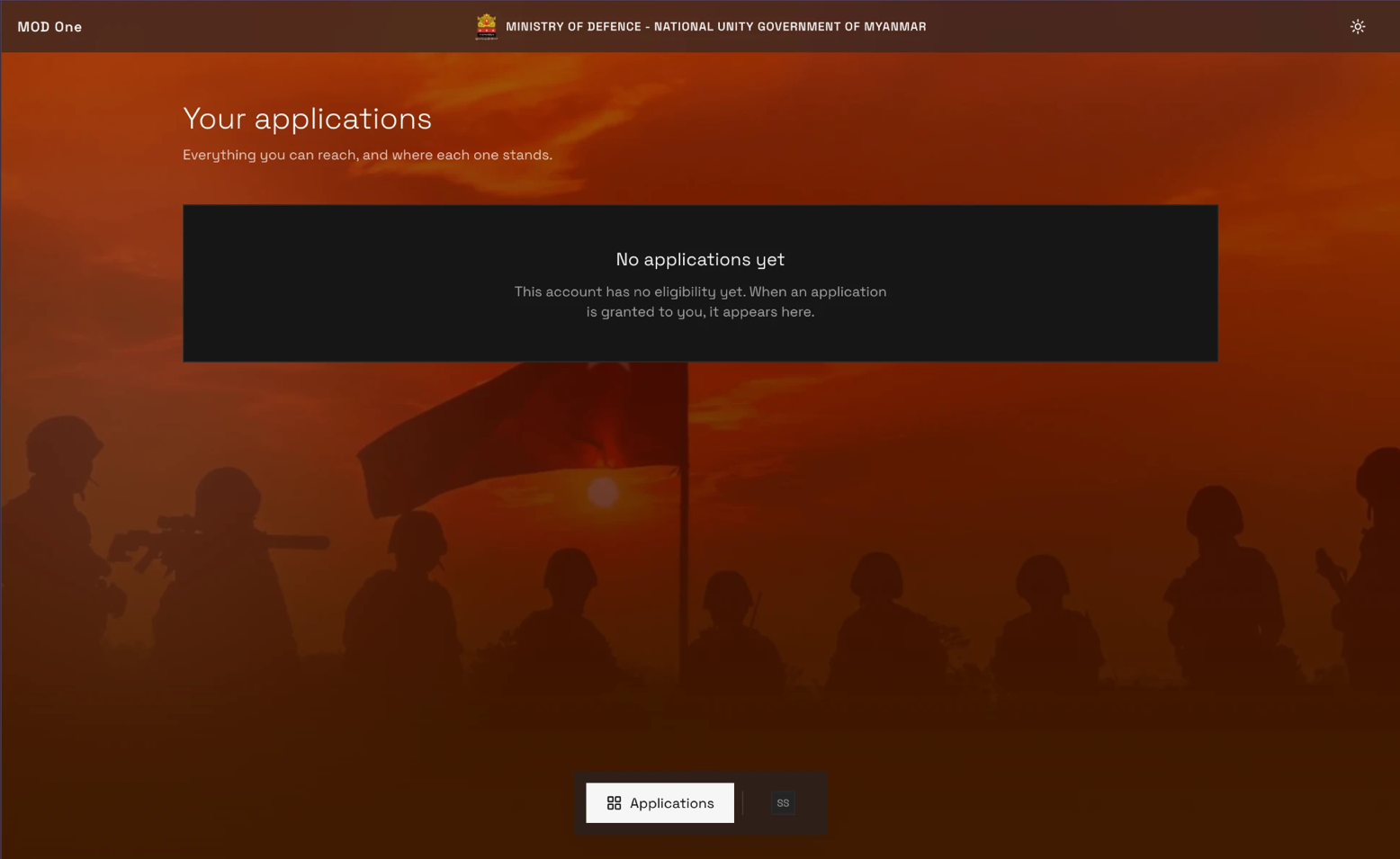
What a new account usually sees. Your sign-in worked. 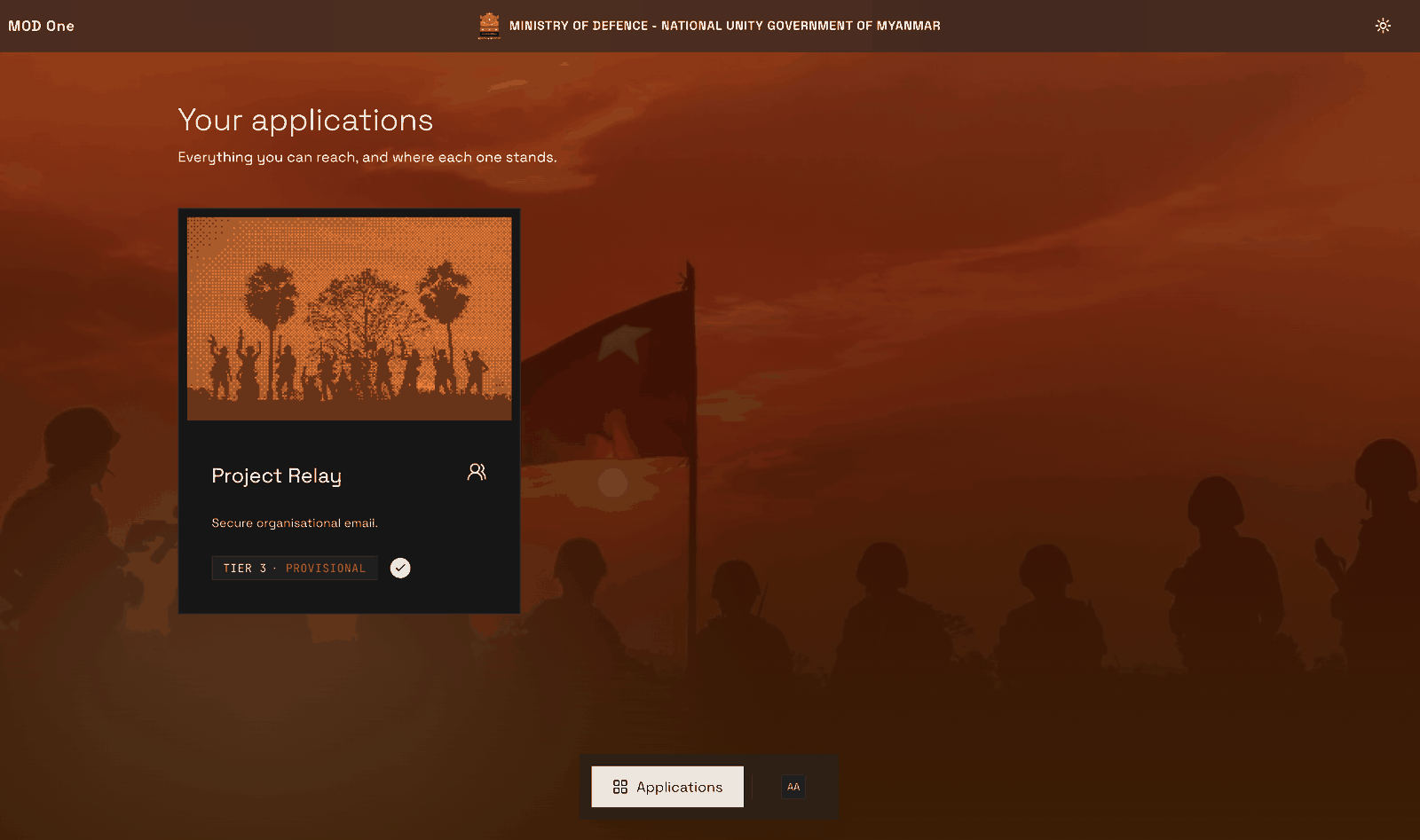
The same page once you have been given an application. Each box is one application.
“No applications yet” is not a failure
If the portal says “This account has no eligibility yet. When an application is granted to you, it appears here.”, your account works. Nobody has given you an application yet: ask your manager or the owner of the application you need. See My portal is empty.
If it does not work
- The temporary password is refused.
It has already been used and replaced, or a new sheet was issued and you have the old one.
If you already chose your own password, use that one. If not, or you have forgotten it, ask your administrator for a new sign-in sheet. The old sheet stops working.
- I finished the steps but cannot get back in.
Almost always the authenticator app. The code depends on the time, so a phone with the wrong clock gives codes that are rejected without explanation.
Set your phone clock to update automatically, then try again. If it still fails, see "I cannot sign in".
- The screen said sign-in did not complete.
The sign-in was interrupted partway through. Nothing was signed in, and nothing was damaged.
Select ENTER and go through it again.
- The portal says I declined the Terms of Use.
You selected Decline. Your account is fine, but you cannot use MOD One until you accept the Terms.
Select ENTER and sign in again. The Terms of Use page comes back: tick the box and select I Agree. If you do not want to accept them, contact your Commanding Officer or the ICT Team.
- I lost my phone after setting up the authenticator.
Your codes come from that phone, and accounts are not given recovery codes.
Contact your administrator directly. They can reset your sign-in so you can set up a new authenticator. See I lost my authenticator.
Still stuck? See who to contact. Have ready which application you were opening, what the screen said, and the time it happened.
Watch it2:42
This recording has no captions yet. Captions are required before launch (NFR-09 targets WCAG 2.2 AA). The written steps above carry the same content in the meantime.